


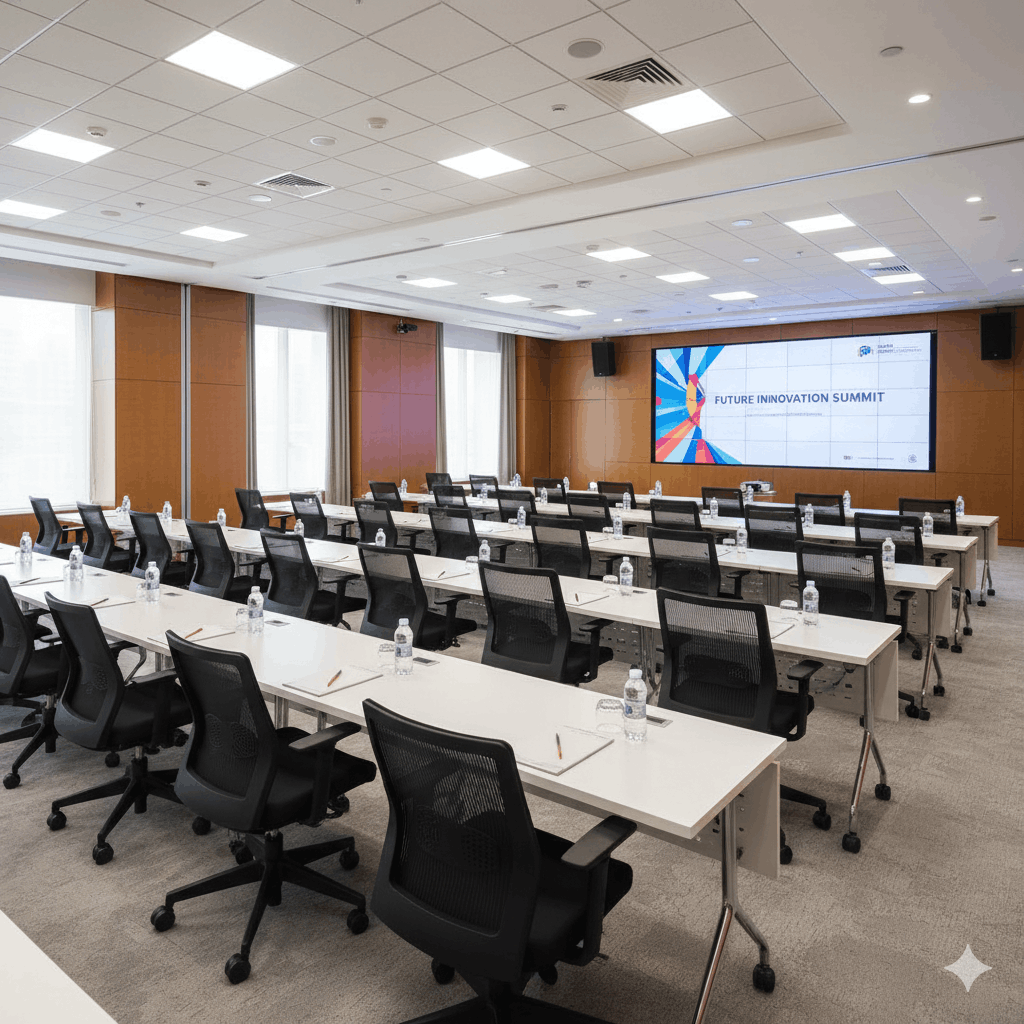
Corporate conference seating has a specific set of problems that most generic ticketing solutions aren’t designed for.
You’re not just selling seats — you’re managing sponsor tables, reserved rows for VIP delegates, different price tiers for general attendees versus premium delegates, and potentially group blocks for companies buying multiple tickets. On the day, you need fast check-in and a clear attendee record.
Get it wrong and you have a check-in queue at 8:45am, a sponsor who can’t find their reserved table, and an attendee in the wrong seat because someone else also got assigned it.
This guide covers exactly how to set up professional corporate conference seating on a WordPress site, using Live Event Seating with WooCommerce.
The Unique Demands of Corporate Seating
A concert or theater has relatively simple seating logic: assign seats, sell them, scan them at the door. Corporate conferences add several layers of complexity:
Multiple seating modes in one venue: The same room may need theater-style rows for keynote sessions, round tables for networking dinners, and reserved VIP areas — sometimes all in the same floor plan.
Sponsor and partner table commitments: Corporate sponsors often commit to buying entire tables as part of a sponsorship package. You need a way to sell a “Gold Sponsor Table (10 seats)” as a single transaction, not 10 individual tickets.
Tiered delegate pricing: Early bird vs. standard, member vs. non-member, day-pass vs. full conference — multiple price points need to exist on the same seating map without creating separate products the buyer has to figure out.
Group bookings from companies: An HR manager booking 15 delegates from the same company needs to reserve a contiguous block of seats without clicking 15 times.
Pre-event dietary and access requirements: Corporate events often need to collect additional attendee data at booking: dietary preferences, accessibility needs, session preferences.
Each of these is solvable in Live Event Seating, and the setup takes less time than building a spreadsheet system that breaks in a week.
Setting Up a Corporate Conference Seating Chart
Step 1: Build Your Venue Layout
Open the drag-and-drop builder and lay out your venue to match the physical room. For a typical conference setup you’ll use:
- Seat Blocks — for theater-style rows in the main hall
- Round Tables — for dinner or networking areas, with seats arranged around the table
- Rectangular Tables — for workshop or classroom-style configurations
- Stages / Podiums — non-bookable elements to orient the map visually
- Text Labels — section names (e.g. “Gold Sponsor Zone”, “General Delegates”, “Media Row”)
The builder works in real coordinates — you can rotate elements to any angle, position them precisely with X/Y input fields, and use snap-to-grid for clean alignment. The result is a map that looks like your actual floor plan, not a generic rectangle with rows.
Step 2: Configure Sponsor Table Booking
For round tables purchased by corporate sponsors, enable the Whole Table Booking toggle in each table’s settings. When enabled:
- Individual seat circles disappear — the table shape itself becomes the clickable element
- Clicking the table selects all seats at once
- The cart shows “1 × VIP Sponsor Table” (not 10 individual seat items)
- Pricing is set via a WooCommerce variable product variation (e.g. “Sponsor Table” = £1,200)
This is how a Gold Sponsor buying a 10-seat table experiences a clean, premium one-click checkout rather than a confusing multi-seat selection.
Step 3: Set Up Tiered Delegate Pricing
Create a WooCommerce Variable Product for your conference. Add a “Delegate Type” attribute with values matching your pricing tiers:
| Variation | Price Example |
|---|---|
| Early Bird | £95 |
| Standard Delegate | £145 |
| VIP / Premium Delegate | £245 |
| Day Pass | £65 |
| Sponsor Table (10 seats) | £1,200 |
Back in the seat map builder, select each seat block or section and assign the appropriate price tier from the dropdown. Front rows or premium sections get the VIP variation; general delegate areas get Standard.
Now when a buyer clicks a VIP seat, the correct price is automatically added to cart. The buyer doesn’t need to select a product variation manually — the seat selection does it for them.
Step 4: Enable Group Booking for Company Delegations
Turn on the Auto Seat Picker toolbar. When an HR manager needs to book 15 seats for their team:
- They type “15” in the bulk booking field
- Click “Find Best Seats”
- The algorithm finds 15 consecutive seats in the general delegate area
- They confirm in one click
All 15 seats are added to a single WooCommerce order. The booking manager shows all 15 as one corporate booking with one order number.
On the Day: Check-In That Doesn’t Create Queues
Corporate events typically have a sharp arrival window — delegates all show up between 8:30 and 9:15am. A slow check-in process creates queues at exactly the time your sponsors and VIPs are arriving.
Live Event Seating’s QR scanner runs in the WordPress admin on any device with a camera — phone, tablet, or laptop. No dedicated hardware. No separate app to install or log into.
Scanning one ticket takes under two seconds. The screen shows green (valid, not yet scanned) or red (already scanned / invalid) with the delegate’s name and seat number. Staff with no technical training can operate it immediately.
For conferences with separate session rooms or breakout areas, multiple devices can run the scanner simultaneously — each logged in as a staff user with scanner-only permissions.
Pre-Event Attendee Management
In the weeks before your conference, the Booking Manager dashboard gives you a complete searchable attendee list for every event. You can:
- Search by name, email, company (if collected), seat, or order number
- Filter to a specific event or ticket tier
- Manually check in delegates who email in advance (e.g. accessibility accommodations)
- Export to CSV for catering headcounts, name badge printing, or session pre-assignment
- View check-in status in real time on event day
For corporate sponsors with reserved tables, you can also use the admin-side Manual Order tool to pre-book their table without sending them through the public checkout — useful when the table is part of a sponsorship agreement handled offline.
What It Costs vs. What Eventbrite Would Charge
For a 300-delegate conference at £145 per ticket, Eventbrite charges approximately 6.95% + £0.59 per ticket in service fees — roughly £11.71 per ticket. Across 300 tickets that’s £3,513 in fees for a single event.
Live Event Seating costs £194.99/year for the Pro plan — for unlimited events on unlimited websites. No per-ticket commission.
For a conference venue running two conferences per year at that size, the fee savings alone pay for the plugin 35 times over.
Corporate Conference Seating Checklist
Use this before your next event:
- Venue layout built and checked against physical floor plan
- Sponsor tables configured with Whole Table Booking mode
- Price tiers created as WooCommerce variable product variations
- Each seat section assigned to the correct price tier
- Auto seat picker enabled for group/corporate bookings
- Scanner device(s) tested with a real QR code ticket
- Staff scanner accounts created with appropriate permissions
- Attendee CSV exported for badge printing (export from Booking Manager)
- Manual bookings entered for any offline/sponsorship agreements
Stop managing corporate conference seating in spreadsheets. Live Event Seating handles assigned seats, sponsor tables, tiered pricing, and QR check-in in one WordPress plugin. Get Live Event Seating → PRO plan from £154.99/year · 14-day money-back guarantee · 0% per-ticket commission
Ready to Keep 100% of Your Ticket Sales?
The Live Event Seating Plugin integrates with WooCommerce, giving you a powerful seating chart builder with zero per-ticket fees.