


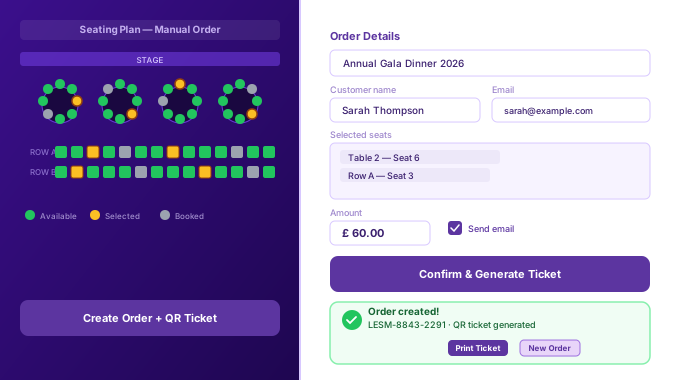
Running a live event means customers arrive in ways you cannot always predict. A walk-in guest at the door, a phone call from a sponsor, or a VIP who needs a complimentary ticket — these situations happen constantly. Yet most manual order ticketing WordPress solutions force you to use the public checkout. That is a slow and awkward process for in-person sales.
Fortunately, Live Event Seating Pro now includes a powerful Manual Order feature. It lets any admin or box office staff member create a full, tracked ticket booking in seconds — directly from the WordPress dashboard. Furthermore, every manual booking creates a real WooCommerce order. So your revenue, analytics, and reports all stay accurate automatically.
Focus: This guide covers exactly what manual order ticketing is, how it works, and why it is essential for any serious event organiser using WordPress.
What Is Manual Order Ticketing in WordPress?
Manual order ticketing lets event admins book seats on behalf of customers. Instead of the customer going through the public checkout, a staff member opens the admin panel and completes the booking there. The result is exactly the same — a locked seat, a QR code ticket, and a WooCommerce order.
This type of offline or walk-in ticket sale is very common in real-world events. Think of a charity gala where 30% of guests pay at the door. Or a corporate awards night where the organiser reserves tables for sponsors before public sales open. Without a dedicated tool, these bookings end up in spreadsheets — completely invisible to your revenue tracking.
Why Traditional Methods Fall Short for Offline Ticket Sales
Many organisers try to work around this gap. Some manually change seat status to “booked” in the builder — but that creates no revenue record and no ticket for the guest. Others create fake WooCommerce orders by hand — which is slow, error-prone, and missing all the seat-booking metadata.
The Live Event Seating Pro features page makes it clear: the plugin is built to handle the full lifecycle of an event, including offline and walk-in sales. Manual Order is the final piece that closes that gap.
How the Manual Order Ticketing Tool Works in WordPress Admin
The Manual Order page lives under Seating Plan → Manual Order in your WordPress dashboard. The workflow is fast and simple. In most cases, staff can complete a walk-in booking in under 60 seconds.
Step-by-Step: Creating a Walk-In Ticket Booking
- Select the eventfrom the dropdown and click “Load Event.” The live seating map loads instantly with real-time availability.
- Pick the seatson the interactive map — the same visual map your online customers use. Click individual seats, whole tables, or enter a GA ticket quantity.
- Enter the customer details— name, email, amount collected, and an optional internal staff note.
- Toggle “Send confirmation email”if the customer wants their ticket by email immediately.
- Click “Create Order”— the system locks the seats, creates the WooCommerce order, and generates the QR ticket in one step.
After you confirm the order, a success panel appears. It shows the unique ticket code, the QR code image, and a Print Ticket button. The print view opens a clean, print-ready page with just the ticket — no WordPress admin chrome — perfect for handing to a walk-in guest at the door.
The Interactive Seating Map — Right Inside Your WordPress Admin
One of the standout features of this manual order ticketing tool is the full, live seating map embedded in the admin. Staff do not need to switch between pages or use a separate system. The map shows every seat’s real-time status — available, selected, booked, or locked by another user.
Multi-Section Venue Support for Large Events
Large venues often use the section-based layout in Live Event Seating Pro. In manual order mode, the map starts in overview mode and shows all sections. Staff simply click a section to zoom in and pick individual seats — then use the back arrow to return to the overview.
Moreover, staff can book seats across multiple sections in a single order. Just zoom in, select seats, zoom back out, enter another section, and select more. All selections appear in the panel on the right before the order is confirmed.
General Admission Areas in Manual Orders
GA zones work just as smoothly. Click the GA area on the map, enter the number of tickets, and the system checks remaining capacity automatically. This prevents overselling even for walk-in GA sales.
Flexible Pricing: Paid, Free, and Complimentary Offline Tickets
Not every manual booking involves a card payment. The Manual Order form gives you full control over the transaction amount. This makes it suitable for a wide range of real-world scenarios.
- Paid orders:Enter the amount collected — cash, bank transfer, or any offline method. The WooCommerce order reflects that value exactly.
- Complimentary tickets:Toggle the “Complimentary” switch. The order is created at £0. The QR ticket still works at the door. The seat is still locked. Only the revenue is zero.
- Staff notes:Add an internal note such as “Cash paid — approved by John (supervisor).” This note appears on the WooCommerce order for a full audit trail.
- Optional email:Send the ticket to the customer’s email instantly, or simply print it on the spot.
Pro Tip: Use the complimentary toggle for press passes, sponsor gifts, and staff access. The booking still appears in all your reports — so you always know the true number of filled seats, not just paid ones.
Real WooCommerce Orders — Full Revenue Tracking for Offline Sales
This is what makes the Live Event Seating Pro manual order tool different from simple workarounds. Every booking creates a genuine WooCommerce order — not a custom database record that sits outside your usual reporting.
As a result, your manual ticket sales feed into every part of your existing system without any extra work.
Where Your Manual Order Data Appears
| Location | What You See |
|---|---|
| 📦 WooCommerce Orders | Full order with line items, price, customer, and a note marking it as a manual booking |
| 📊 Analytics Dashboard | Revenue, seat count, and average order value all include manual sales |
| 📋 Booking Manager | Appears in the central attendee list with seat details and check-in status |
| 📤 CSV Export | Manual bookings are included in all exported reports |
| 🗺️ Seating Map | Booked seats show as unavailable immediately on the public map |
Consequently, you get a single, complete picture of event revenue — whether a ticket was sold online at midnight or at the door on event day. This is especially important for post-event financial reporting and sponsor reconciliation.
QR Code Tickets for Walk-In Customers — Instant and Scannable
The moment a manual order is confirmed, the system generates a unique QR code. This code uses the same format as codes generated by online orders. Therefore, it works seamlessly with the Ticket Scanner built into the plugin.
Staff can check in manual order guests in three ways. They can scan the QR code directly on a phone screen. They can type the code into the manual entry field on the scanner page. Or they can check in the guest with a single click directly in the Booking Manager.
Print Tickets On the Spot — No Admin Page in the Printout
The Print Ticket button generates a clean, isolated print view. It contains only the ticket — event name, seat list, customer name, ticket code, and QR code. Nothing from the WordPress admin appears in the printout. This makes it professional enough to hand to any guest.
Who Should Use the Manual Order Ticketing Feature?
The manual order tool is useful in almost any live event scenario. However, it is particularly valuable for organisers who run a mix of online pre-sales and in-person box office sales.
- Concert and theatre box officesthat sell walk-up tickets on the night
- Gala dinner organiserswho reserve tables for sponsors before public sales open
- Conference managersbooking seats for speakers, VIPs, and press
- Wedding and events venueshandling last-minute changes to the guest list
- Fundraising eventswhere committee members pay in cash or by bank transfer
- Sports clubs and arenaswith a physical ticket desk alongside the online shop
In short, any organiser who sometimes deals with customers outside the standard online checkout will benefit from this feature. Furthermore, the complete WooCommerce integration means you never lose sight of these sales in your reporting.
Manual Order Ticketing vs. Manual Status Override — Key Difference
Live Event Seating Pro already has a feature called Manually Setting Booking Status. It is important to understand the difference between these two tools.
The status override tool lets you mark an entire table or seat block as “booked” directly in the builder — useful for blocking VIP seats or staff areas. However, it creates no order, no QR ticket, and no revenue record. It simply hides those seats from public view.
The Manual Order tool, on the other hand, creates a full transaction. Use it whenever you are selling a ticket to a real customer who needs a scannable ticket and whose payment should appear in your revenue reports. Use the status override only for non-sale holds and blocks.
Rule of thumb: If money changed hands (or a free ticket was issued), use Manual Order. If you are simply blocking a seat for logistics, use the status override.
How Manual Order Ticketing Works Alongside Other Pro Features
The manual order tool integrates cleanly with the rest of the plugin. It does not work in isolation — it is part of a connected system.
Accessibility Seat Booking in Manual Orders
If your venue has wheelchair-accessible or companion seats marked in the builder, those seats appear on the admin map with their correct colours. Staff can clearly identify and book them for guests who need accessible seating.
Guest Name Assignment
After creating a manual order, you can assign a guest name to each seat directly in the Booking Manager. This is ideal for gala dinners where place cards and seating rosters need printed names. The name then appears on the PDF ticket and in all exports.
Cancellations Release Seats Automatically
If a manual order needs to be cancelled, simply change the WooCommerce order status to “Cancelled.” The plugin automatically releases the seats back to the live map. No manual cleanup is needed. This works exactly the same as cancelling any online order.
Where to Find the Full Setup Guide for Manual Offline Ticket Sales
A full step-by-step walkthrough is available in the official Live Event Seating Pro documentation. The documentation covers every field on the form, explains the difference between paid and complimentary orders, and includes tips for multi-section venues.
Additionally, the full features list gives you an overview of everything included in the Pro version — from the drag-and-drop builder and waitlist system to group booking and the visual ticket builder.
Final Thoughts on Manual Order Ticketing for WordPress Events
Every live event has customers who do not book online. Walk-ins, phone calls, comps, and box office sales are a normal part of event management. Without a proper tool, these sales fall outside your tracking — creating gaps in your revenue data and headaches on event day.
The Manual Order feature in Live Event Seating Pro closes that gap completely. It gives you a fast, professional booking interface inside WordPress admin. It creates real WooCommerce orders so every sale is counted. It generates scannable QR tickets immediately. And it integrates with every other part of the plugin — from the seating map to the Booking Manager to CSV exports.
In short, it is the missing piece for any event organiser who runs a physical venue alongside an online ticketing page. If you are already using Live Event Seating Pro, the feature is available now under Seating Plan → Manual Order.
Ready to Sell Walk-In Tickets the Smart Way?
Get Live Event Seating Pro and unlock manual order ticketing, the visual seat builder, QR check-in, and every Pro feature — in one plugin with zero per-ticket fees.