


Are you looking for a powerful way to increase your store’s average order value? A WooCommerce mix and match deal is one of the most effective strategies. It encourages customers to explore your product catalog and purchase multiple items at once. For example, you can offer promotions like “Buy any 3 T-shirts, get 15% off” or “Mix and match any 5 pairs of socks for $25.” This not only boosts your revenue but also helps you move inventory faster.
However, setting up these kinds of bundled product discounts in default WooCommerce is impossible. You need a tool that can group products and count their total quantity in the cart. Fortunately, our Quantity Discounts & Pricing plugin makes this process incredibly simple.
In this guide, we will show you exactly how to create your first mix and match deal.
Why Do Mix and Match Discounts Work So Well?
Before we dive in, let’s consider the psychology. Mix and match pricing gives customers a sense of control and value. Instead of being forced into a pre-made bundle, they get to choose the specific products they want. This freedom of choice makes the offer much more appealing. Consequently, they often buy more than they originally planned just to hit the discount threshold. It’s a proven strategy for shops selling apparel, cosmetics, food items, or any product with multiple variations.
Ready to see how it’s done?
Step 1: Create a New Product Quantity Rule
First, make sure you have the Quantity Discounts & Pricing plugin installed and activated.
- Navigate to WooCommerce > Quantity Discounts in your WordPress dashboard.
- Select the Product Quantity Rules tab.
- Click the “Add New Quantity Rule” button to get started.
Give your rule a clear title, like “Summer T-Shirt Mix & Match Deal.”
Step 2: Configure Your Group Discount Tiers
This is where you define the discount. In the “Quantity Ranges & Discounts” section, set up your offer. For this example, let’s create a “Buy 3 or more, get 20% off” deal.
- Start Qty: 3
- End Qty: 999999 (a large number for “and more”)
- Discount Type: Percentage Discount
- Amount: 20
You can add multiple tiers if you wish, such as an even bigger discount for buying 5 or more.
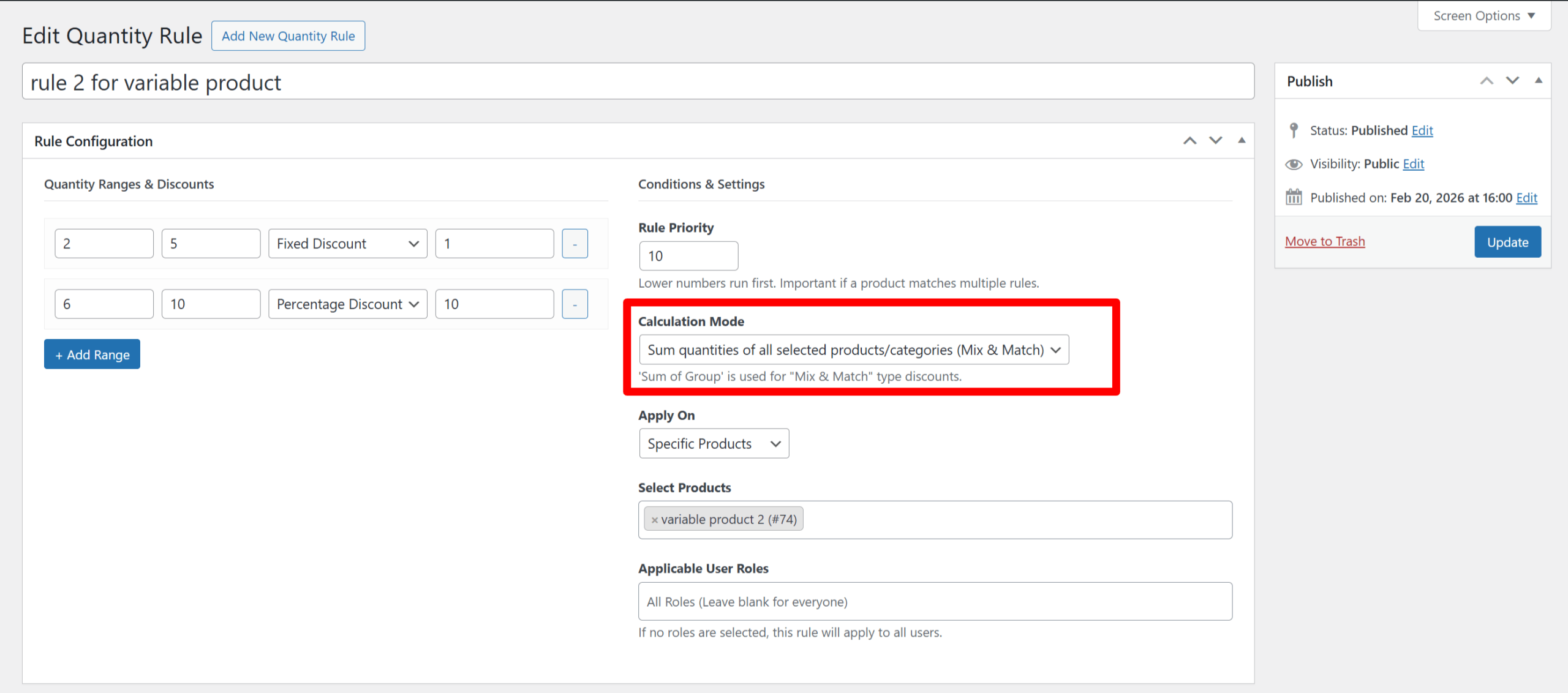
Step 3: Enable the Mix and Match Calculation Mode
This is the most important step for creating a bundled product discount. In the “Conditions & Settings” section, find the Calculation Mode dropdown.
- Change it from the default to “Sum quantities of all selected products/categories (Mix & Match)”.
This tells the plugin to count the total quantity of all specified products together, rather than counting each one individually.
Step 4: Select the Products for Your Deal
Finally, you need to tell the plugin which products are part of this deal.
- Under Apply On, select either “Specific Products” or “Product Categories”.
- Use the searchable dropdown to add all the products or categories you want to include in your WooCommerce mix and match offer. For our example, you would select all the T-shirts that are part of the summer collection.
That’s it! Click Publish, and your deal is live. Now, when a customer adds any combination of the selected T-shirts to their cart, the plugin will count the total. Once the count reaches three, it will apply a 20% discount to each of those T-shirts in the cart. For more powerful pricing strategies, you can also explore how WooCommerce’s official site discusses product bundling.
Start Boosting Your Sales Today
Setting up a WooCommerce mix and match pricing strategy is one of the fastest ways to increase customer engagement and boost your store’s revenue. With the right tool, it’s no longer a complicated task.
Ready to create powerful discounts and drive more sales?