



If you run a B2B business or want to sell in bulk, setting up a WooCommerce wholesale pricing system is essential. Your wholesale customers expect a different pricing structure than your retail shoppers. They need discounts based on volume and potentially exclusive pricing based on their customer level. Unfortunately, WooCommerce doesn’t offer this functionality out of the box.
Trying to manage this with coupon codes is inefficient and unprofessional. You need an automated system that applies the correct price based on who is shopping and how much they are buying. This is where a dedicated plugin becomes a necessity.
Our Quantity Discounts & Pricing plugin is designed to be the ultimate solution for B2B stores. It combines tiered pricing with powerful user role conditions. This guide will walk you through how to set up a complete wholesale system.
Understanding Key Features for B2B Pricing
A robust B2B pricing strategy requires two core features:
- Tiered Pricing: The more a customer buys, the lower the price per unit. This is the foundation of any bulk discount system.
- User Role Pricing: The ability to assign different discount rules to different groups of users. For example, your “Gold Tier” wholesalers should get better pricing than your “Silver Tier” wholesalers.
Let’s see how you can configure both.
Step 1: Create Wholesale User Roles
First, you need to segment your customers. If you don’t already have them, you’ll need to create user roles for your wholesale clients. You can do this with a free plugin like “User Role Editor.”
Create roles such as:
- Wholesale Customer
- VIP Wholesaler
Once you have these roles, you can assign them to your B2B customers from the “Users” screen in WordPress.
Step 2: Set Up Tiered Pricing Rules
Now, let’s create the pricing structure. We will do this using a “Product Quantity Rule.”
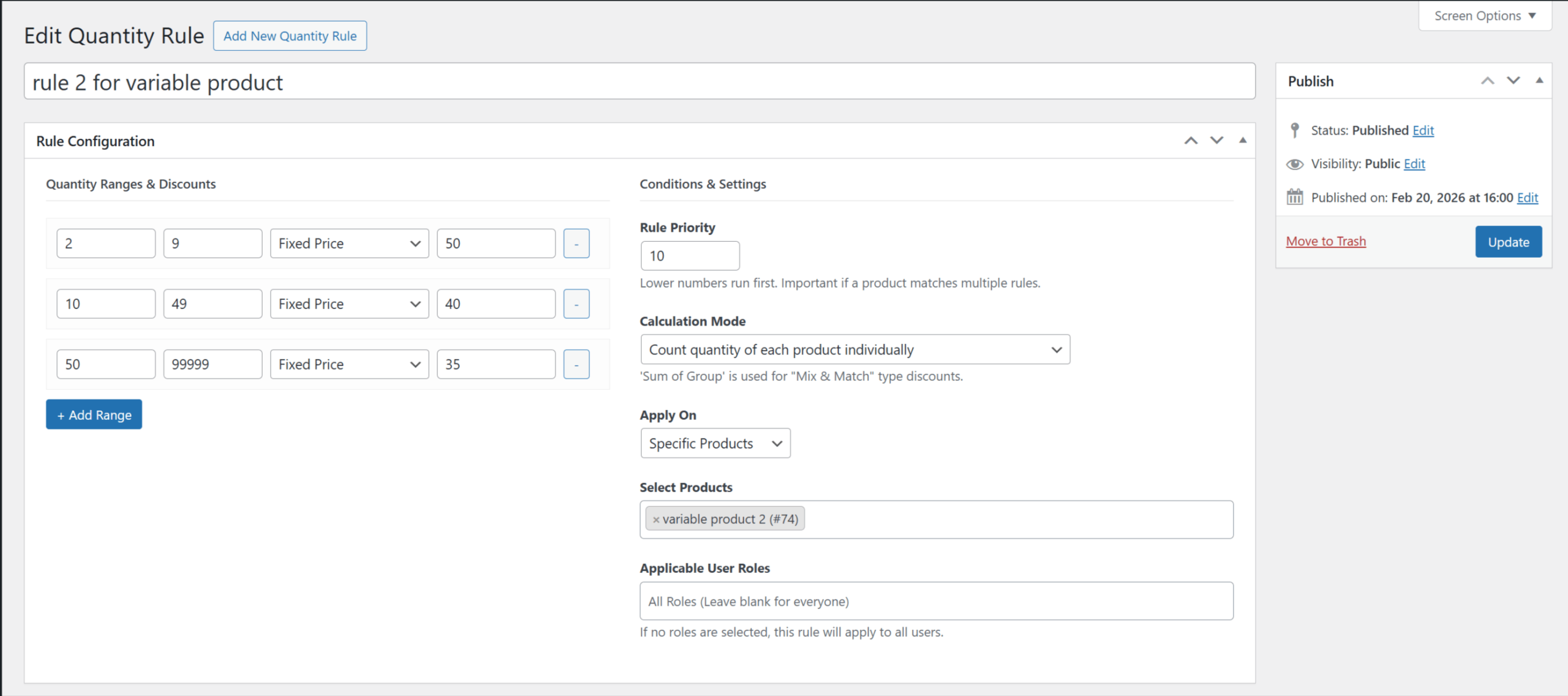
- Navigate to WooCommerce > Quantity Discounts > Product Quantity Rules.
- Click “Add New Quantity Rule”.
- In the “Quantity Ranges & Discounts” section, create your tiers. For a wholesale product, this might look like:
- Row 1 (Single Item): Start: 1, End: 9, Type: Fixed Price, Amount: 50 (The retail price)
- Row 2 (Case Price): Start: 10, End: 49, Type: Fixed Price, Amount: 40
- Row 3 (Pallet Price): Start: 50, End: 999999, Type: Fixed Price, Amount: 35
Step 3: Apply Rules with User Role Pricing
This step connects your pricing tiers to your wholesale customers.
- In the “Conditions & Settings” section of your rule, find the Applicable User Roles dropdown.
- Select the wholesale user role(s) you created, for example, Wholesale Customer.
- In the Apply On section, choose the specific products or categories this wholesale pricing applies to.
- Click Publish.
Now, when a regular retail customer views the product, they will only see the standard price. However, when a logged-in user with the Wholesale Customer role views the same product, they will see the full pricing table you created, and the discounts will apply automatically in their cart. This principle is a cornerstone of B2B e-commerce, as noted by industry leaders like BigCommerce.
Creating a Complete B2B System
You can repeat this process to create different rules for different user roles. For instance, you could clone this rule, adjust the prices to be even lower, and assign the new rule to your VIP Wholesaler role with a higher priority. This gives you granular control over your entire WooCommerce wholesale pricing strategy.
Stop managing your B2B customers manually. Automate your pricing and provide a professional wholesale experience today.