


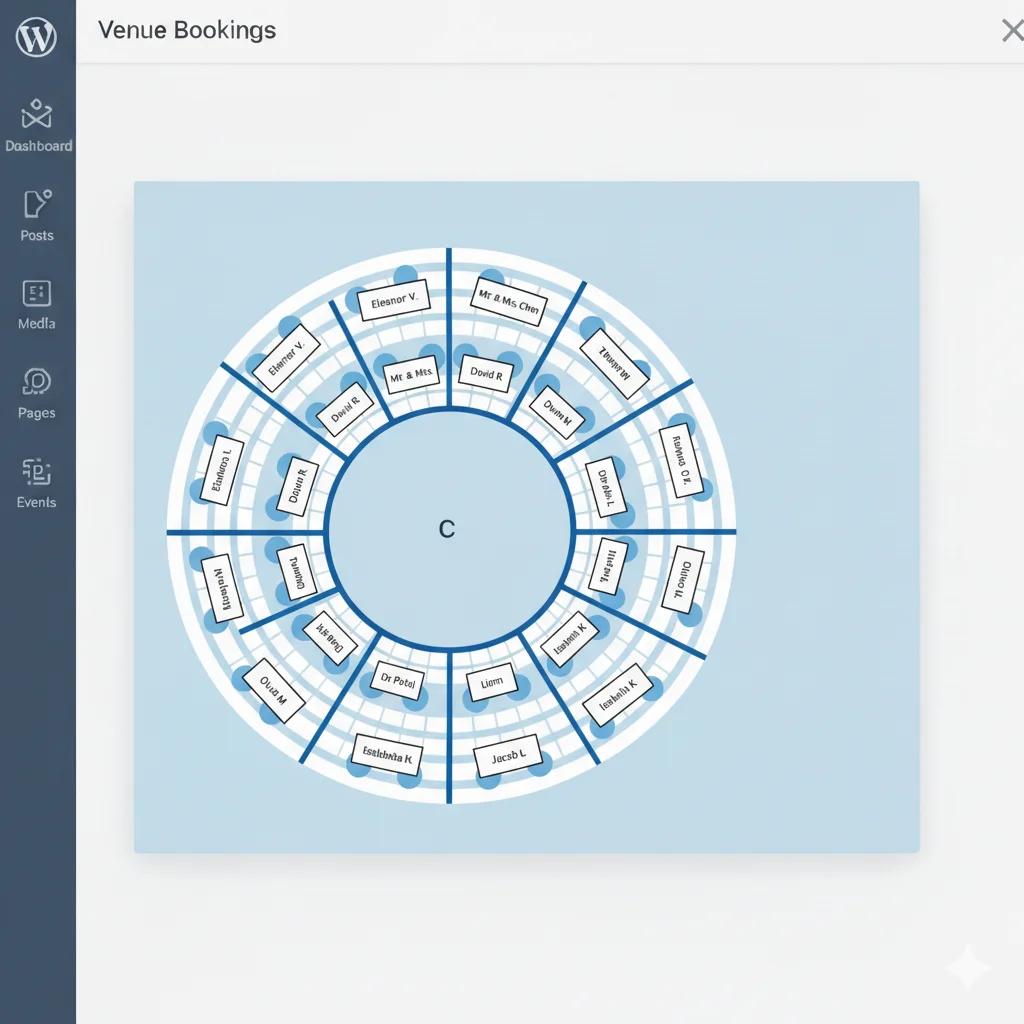
Stop Managing Your Guest List in a Spreadsheet
Looking for a way to assign guest name to seat in your WordPress event plugin? You are in the right place. Every gala organizer has been there — you sell 200 tickets for a dinner and the actual guest seat assignments live in a spreadsheet on someone’s laptop.
On event day, that spreadsheet has three different versions. Someone printed the wrong one. A guest arrives and their name is not on the list. Chaos follows.
The new Guest Name Assignment per Seat feature in the Live Event Seating WordPress seating chart plugin puts an end to this. Furthermore, it gives you a dedicated admin tool to manage every seat name in one place — without digging through individual WooCommerce orders one by one.
Why the Old Way Always Failed
WooCommerce Orders Were Never Built for Seat Name Management
Previously, the only way to record who sat where was to open each WooCommerce order individually and add a manual note. This was slow. Moreover, it was invisible — those notes never appeared on tickets, emails, or any printed roster.
For events with 100 or more guests, this process took hours. Furthermore, any last-minute change meant finding the right order again and updating it manually.
Spreadsheets and Seating Charts Live in Different Places
Your digital seating map and your guest list should be the same thing. However, most organizers kept them in completely separate tools. As a result, the team constantly switched between systems and manually synced data between them.
One wrong copy-paste and a guest ended up at the wrong table. Sound familiar?
Check-In Was Slow and Stressful
When your team arrived on event day, they spent precious minutes matching printed lists to faces at the door. Searching paper by name is slow. Furthermore, if the spreadsheet had errors, the whole check-in process broke down under pressure.
How to Assign Guest Name to Seat Using the WordPress Event Plugin
Inline Editing Inside the Booking Manager
The fastest way to assign names is directly inside the Booking Manager. Go to your Booking Manager dashboard in WordPress. Find any seat row. Click the Guest Name cell. Type the name and press Enter.
That is it. The name saves instantly via AJAX — no page reload, no extra steps. Consequently, you can work through your entire guest list without ever leaving the page.
Dedicated Guest List Page
The plugin also includes a dedicated Guest List page for each event. This single page shows every seat and every assigned guest name together in one clean view.
Moreover, this page is printable. You can hand it directly to your front-of-house team as a physical roster on event day. No spreadsheet. No exported file. Just print and go.
Bulk Import from a Spreadsheet
If you already have your guest list in a spreadsheet, the bulk import tool saves enormous time. Simply paste a list of Booking ID, Guest Name lines into the import field and click save.
All names are assigned in one single action. Therefore, importing a full event guest list takes seconds — not hours.
Where Guest Names Appear Automatically
This is where the feature truly stands apart. Once you assign a name to a seat, that name appears automatically across every customer-facing touchpoint — with no extra configuration needed.
- 🎟️ Thank You Page — Guest name appears as a purple badge inline after the seat label
- 📄 PDF Ticket — Displayed in italic em-dash style; regenerates automatically when updated
- 📧 Order Confirmation Email — Included in the seat list inside the email body
- 📋 Booking Manager — Editable Guest Name column in your admin table
- 🖨️ Printable Guest Roster — Full event roster for front-of-house teams
- 📊 CSV Export — Guest Name column included in all exported reports
Additionally, if you enable the optional customer self-service setting, guests can add or update their own name from their My Account order view. The PDF ticket regenerates automatically the moment they save.
How to Enable Customer Guest Name Entry
If you want guests to enter their own names, go to Seating Plan → Settings → Guest Name Assignment in your WordPress admin. Enable the Allow Customer Guest Name Entry option.
When this setting is active, customers see a name editor directly inside their My Account order detail page. Furthermore, a Print Ticket button appears there too — letting guests print or download their ticket at any time without contacting you.
Who Should Use Guest Name Assignment in WordPress
Gala Dinner and Awards Night Organizers
Assigned seating is the standard at formal dinners. This feature finally brings the “Table 3, Seat 2 = John Smith” place-card system inside WordPress — no third-party tools required.
Wedding Planners Using WordPress
Wedding seating plans change constantly in the weeks before the event. Inline editing and bulk import mean every update takes seconds. Moreover, the live guest list page keeps your whole team on the same page at all times.
Corporate Event Managers
Corporate events involve VIP seating, sponsor tables, and executive placement. Guest name assignment lets you manage all of this from one admin view and export a complete CSV report for your records.
Conference Organizers with Reserved Workshop Seats
When specific attendees are registered for specific sessions, assigning their names to seats keeps your rosters accurate. Furthermore, the printable guest list means your room coordinators always have the right information at the door.
How Guest Name Assignment Works with Other Plugin Features
Booking Manager Dashboard
The Booking Manager is where you do most of your guest name work. The editable Guest Name column sits right inside the same table as your booking data. As a result, you manage attendance and names in one unified view.
CSV Export
Every name you assign exports automatically with the rest of your booking data. Therefore, if you need to share the guest list with a caterer, venue coordinator, or print supplier, one click gives you a complete, accurate file.
Seat Transfer Feature
If a guest moves to a different seat, the Seat Transfer feature handles it cleanly. The guest name updates automatically when the transfer is approved. Consequently, your guest list always reflects the latest seating arrangement.
Frequently Asked Questions
Can I assign all guest names without leaving the Booking Manager?
Yes. The inline editing tool lets you click any Guest Name cell, type the name, and press Enter to save — all without a page reload. You can move through your full guest list on one screen.
Can customers enter their own guest names?
Yes, optionally. Go to Seating Plan → Settings → Guest Name Assignment and enable Allow Customer Guest Name Entry. Customers can then update their name from their My Account page and the PDF ticket updates instantly.
Does the guest name appear on printed tickets?
Yes. The guest name appears on the Thank You page, the PDF ticket, the confirmation email, and the printable front-of-house roster. All touchpoints update automatically when the name is saved or changed.
Can I import guest names from Excel or Google Sheets?
Yes. Copy a list of Booking ID, Guest Name lines from your spreadsheet and paste them into the bulk import field. All names are saved in one click.
Is guest name assignment available on all plans?
Guest Name Assignment is part of the Pro feature set. Check the full features and pricing page for a complete plan comparison.
Your Guest List and Your Seating Chart Should Be One Thing
Managing events in WordPress means keeping everything in one place. Guest Name Assignment finally connects your seating map, your guest list, your tickets, and your printed rosters into a single, live system inside your WordPress dashboard.
No spreadsheet. No WooCommerce order digging. No last-minute panic at the door.
Moreover, the plugin still charges zero commission on every ticket you sell. So as your event grows, your costs do not grow with it.
Read more event management tips on the macmonir.net blog.
🪑 Ready to Replace Your Spreadsheet for Good?
Assign guest names inline, bulk import entire lists, and print your roster in seconds.
Get the Live Event Seating Plugin →
Backed by a 14-day money-back guarantee. No per-ticket fees. Zero spreadsheets required.